

Step 1: Install and Launch TRAE
Download and Install
Visit the TRAE website and install TRAE.
Step 2: Configure Model in TRAE
Use your VibeCodeCheap API Key to add the Coding Plan model in TRAE.Open Models
In the chat sidebar, click the Settings icon in the upper right corner, then go to Models.
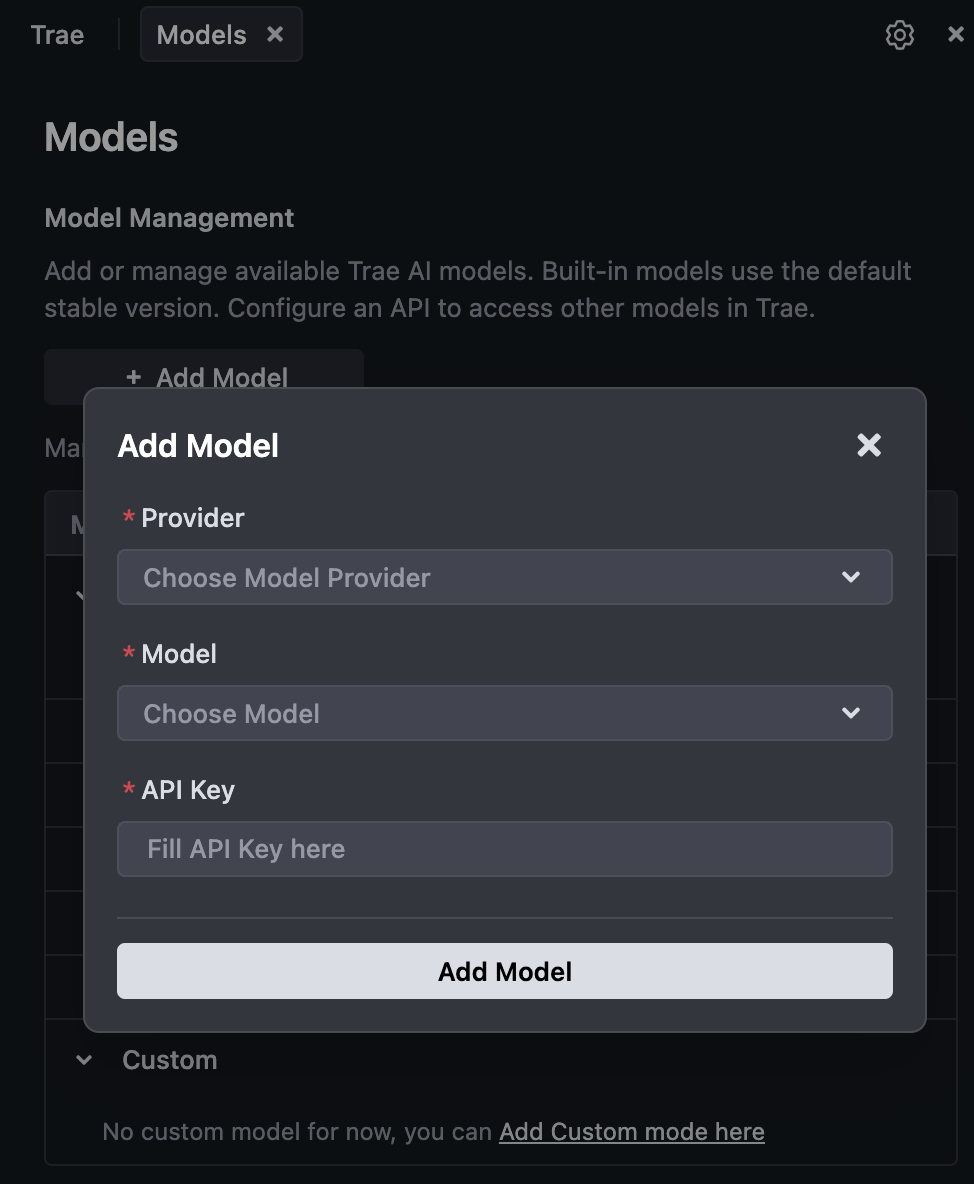
Enter Configuration Details
- Provider: Select Custom OpenAI-compatible
- Model:
claude-opus-4-5-20251101. See Models for all available models. - Base URL:
https://api.vibecodecheap.com/v1/ai/v1 - API Key: Enter your VibeCodeCheap API Key
Step 3: Get Started with TRAE +
- Select the claude-opus-4-5-20251101 model in TRAE. See Models for all available models.
- Request assistance with tasks such as feature implementation, code generation, refactoring, and debugging.
- Use inline suggestions and agentic actions to accelerate your workflow.
FAQ
Connection Fails When Adding Model
- Verify the VibeCodeCheap API Key is correct and active.
- Check the Base URL is correct:
https://api.vibecodecheap.com/v1/ai/v1. - Check network connectivity and try again. If the error persists, review the error message in the Add Model dialog.
Resources
- TRAE Website: trae.ai
- VibeCodeCheap API Keys: vibecodecheap.com/manage-apikey/apikey-list
- Coding Plan: vibecodecheap.com/subscribe