

Step 1: Install Claude Code & Configure Coding Plan
Claude Code IDE plugin depends on Claude Code CLI. Please complete installation and Coding Key configuration following the Claude Code with Coding Plan guide.Step 2: Install and Use IDE Plugin
- Claude Code for VS Code
- Claude Code for JetBrains
Claude Code VS Code plugin supports VS Code and VS Code-based IDEs (such as Cursor and Trae).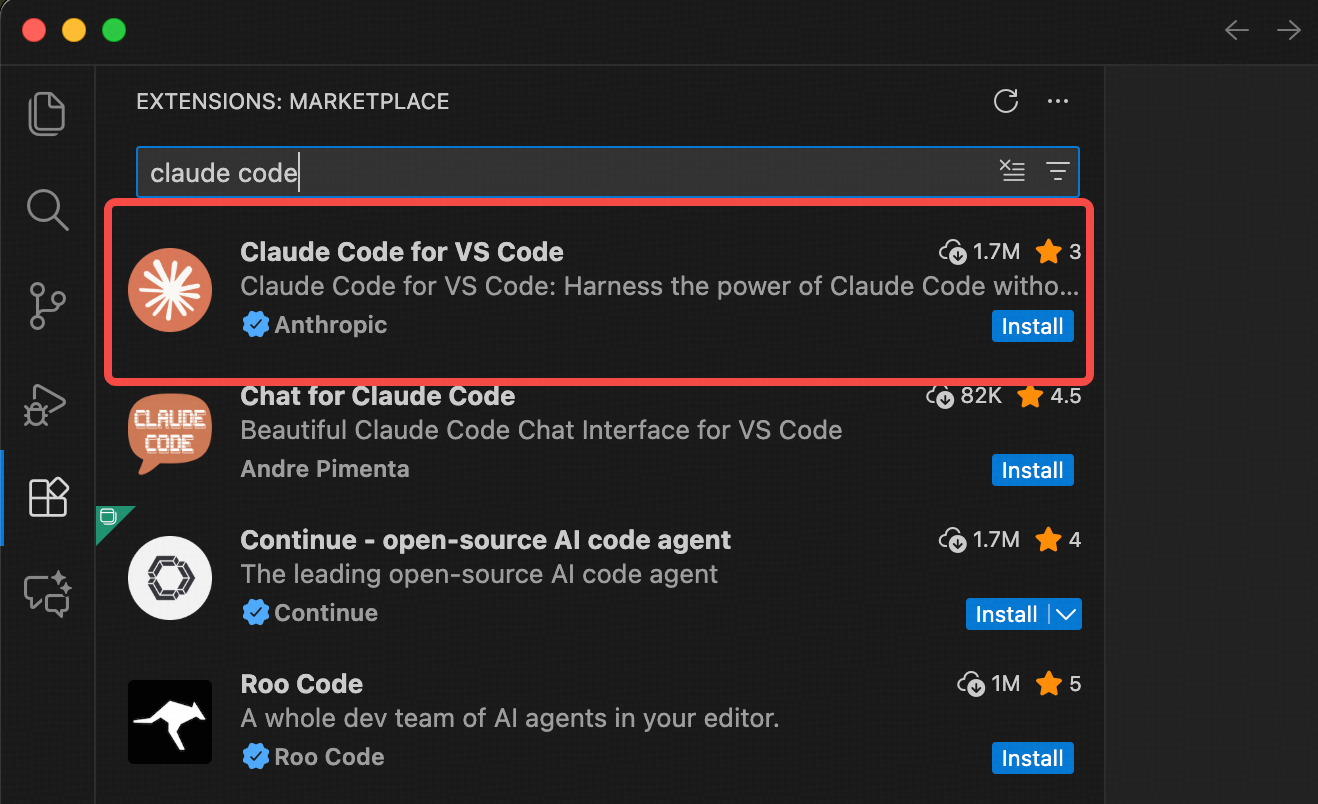 After installation, click the Claude Code icon in the upper right corner to open the Claude Code panel. Wait a few seconds for initialization, then start using.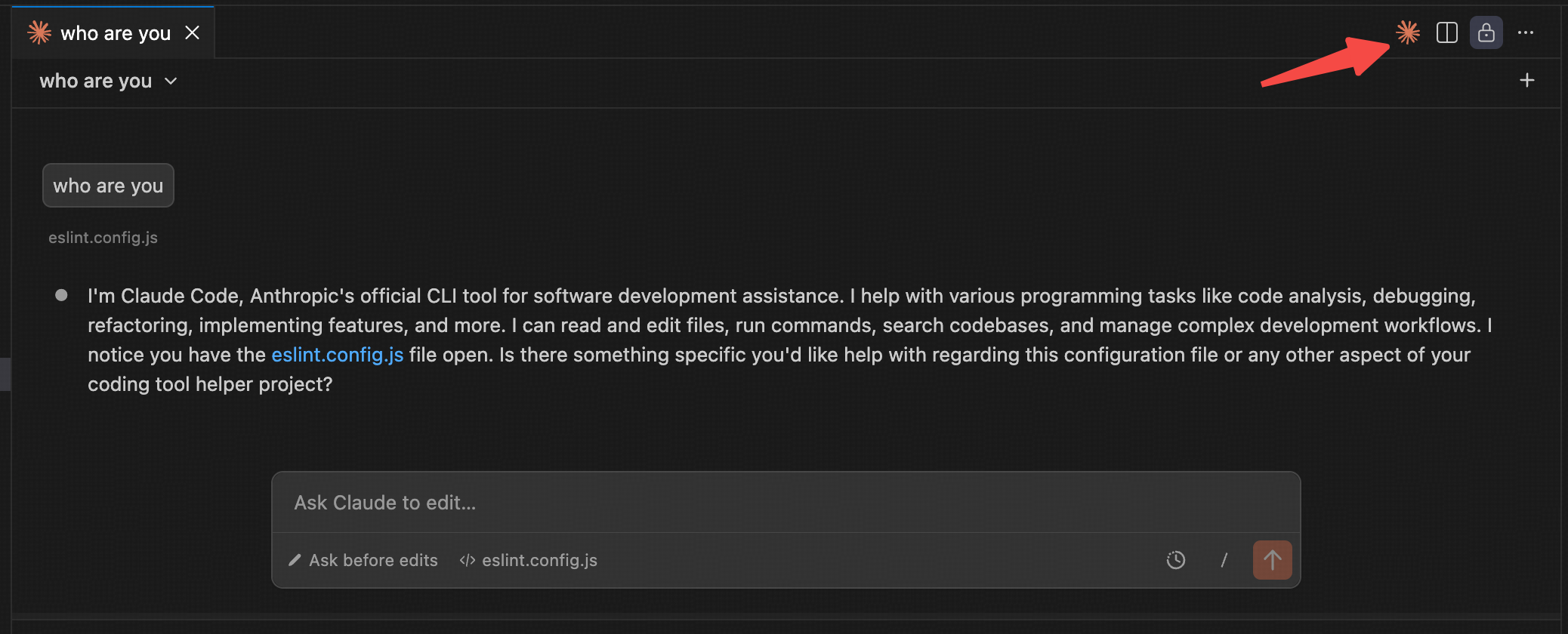
- Open VS Code, go to Extensions Marketplace
- Search for and install the “Claude Code” plugin
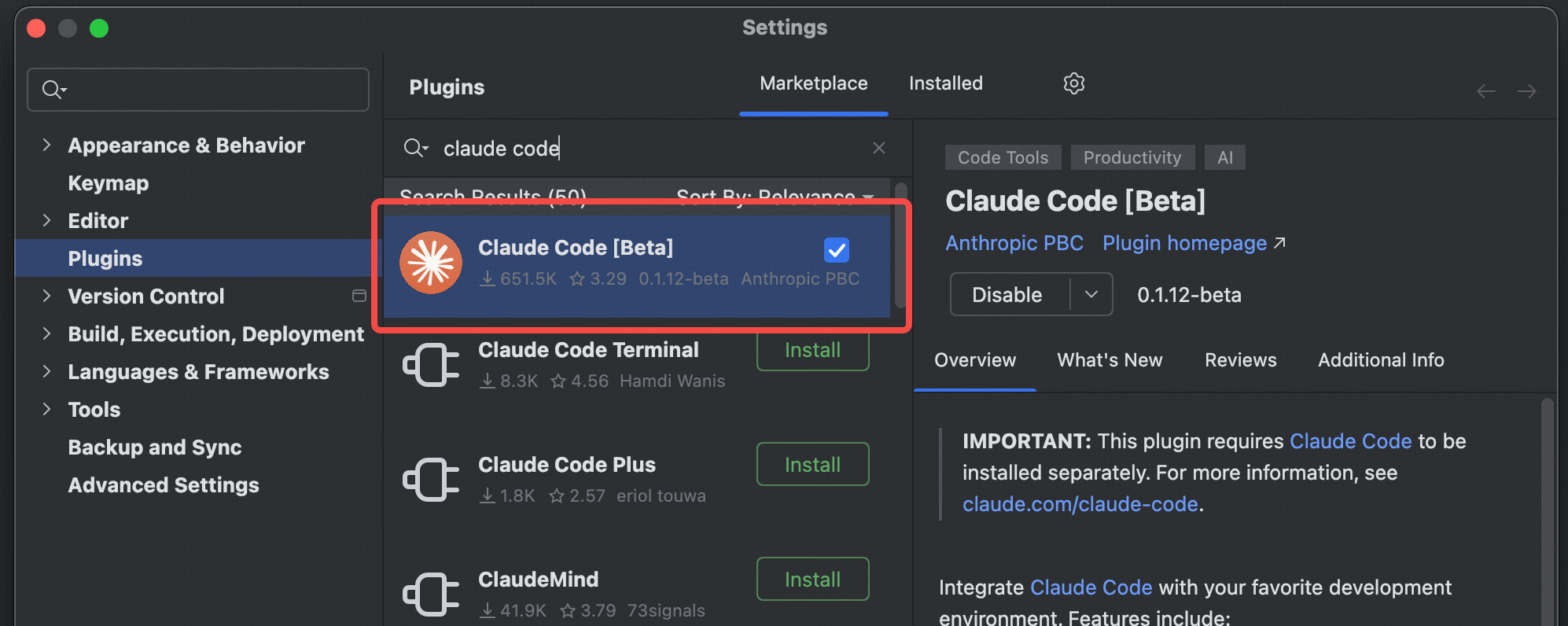
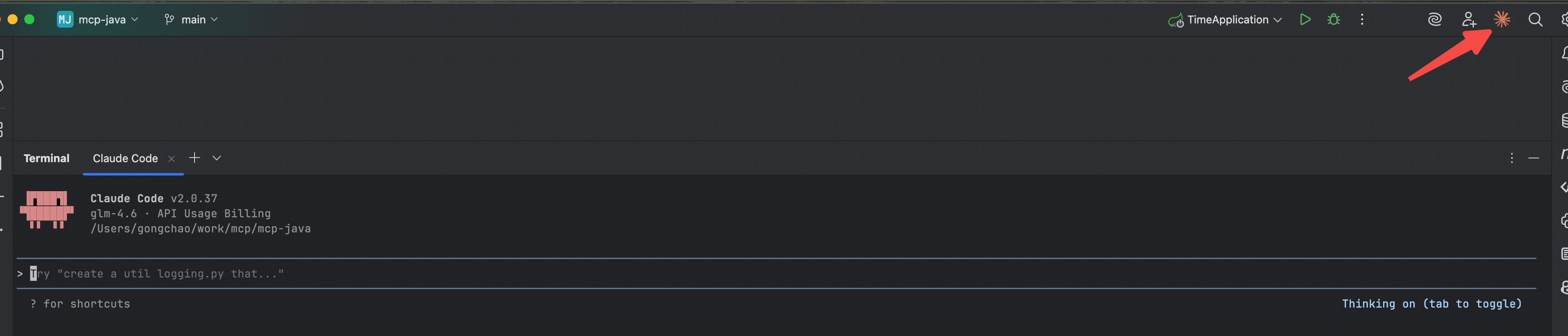
Done! You can now use Claude Code in your IDE for development.