

Step 1: Supported Tools
Any tool that supports the OpenAI Protocol can run on claude-opus-4-5-20251101. Simply replace the default OpenAI API URL and set your API key. Here are some popular tools that support the OpenAI Protocol and can integrateclaude-opus-4-5-20251101 using the same approach:
- Cursor
- Gemini CLI
- Cherry studio
- …
Step 2: Installation and Configuration
Core Steps:
- Select an OpenAI-compatible provider.
- Add/Replace the OpenAI Base URL with
/v1. - Enter your VibeCodeCheap API Key and select claude-opus-4-5-20251101, claude-opus-4-5-20251101, or gemini-3-pro.
claude-opus-4-5-20251101 model via the OpenAI protocol. Similarly, other tools that support the OpenAI protocol can apply the same configuration approach.
1. Install Cursor
Download and install Cursor from the official website.2. Create New Provider/Model
In Cursor, navigate to the “Models” section and click “Add Custom Model”.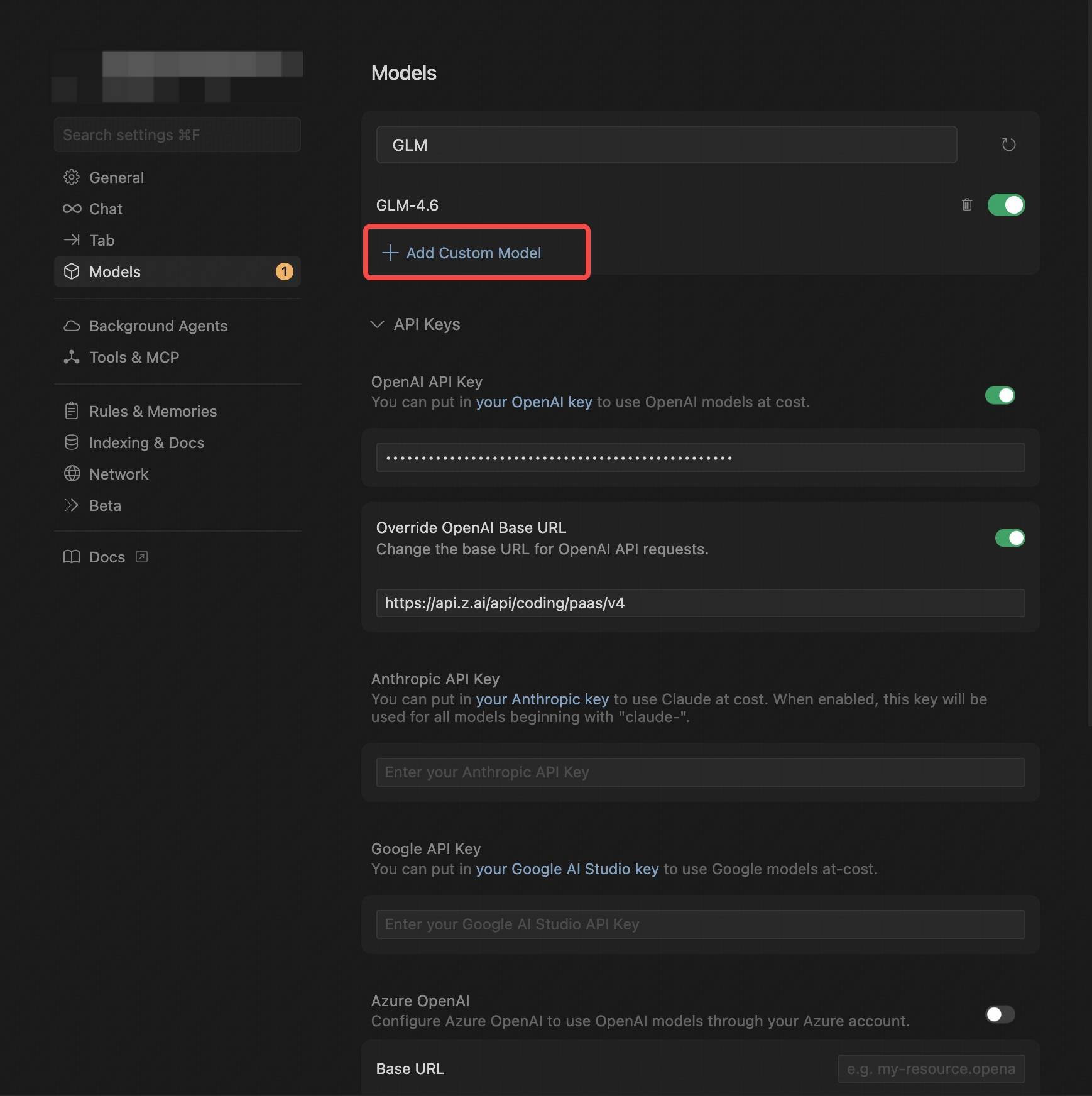
- Select OpenAI Protocol.
- Configure the OpenAI API Key (obtained from VibeCodeCheap).
- In Override OpenAI Base URL, replace the default URL with
/v1. - Enter the model you want to use, e.g.,
claude-opus-4-5-20251101,claude-sonnet-4-5, orgemini-3-flash. See Models for all available models.
In Cursor, the model name must be entered in uppercase, e.g.,
claude-opus-4-5-20251101.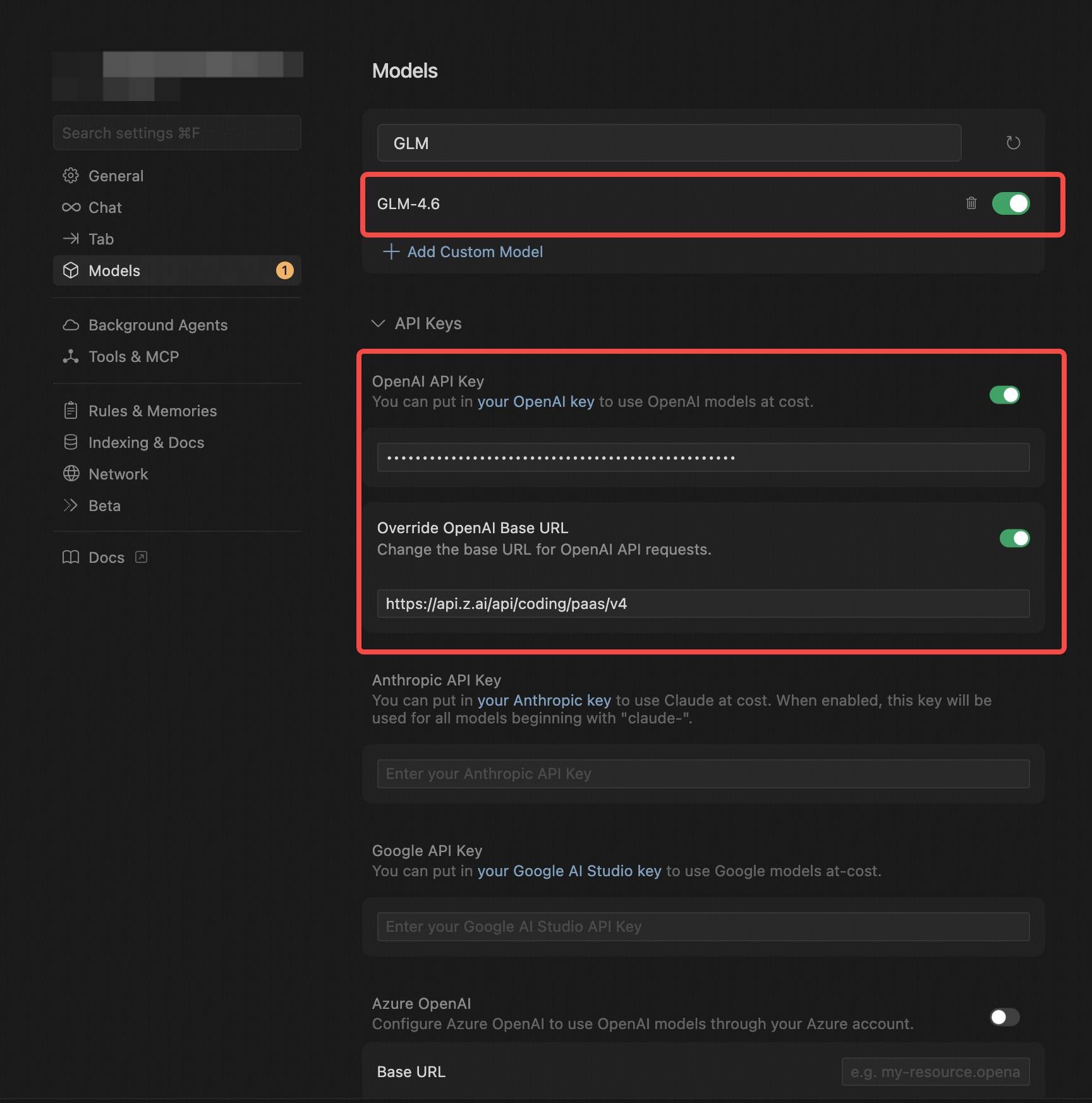
3. Save and Switch Models
After configuration, save the settings and select the newly created claude-opus-4-5-20251101 Provider on the homepage.4. Start Using
With this setup, you can start using the claude-opus-4-5-20251101 model for code generation, debugging, task analysis, and more.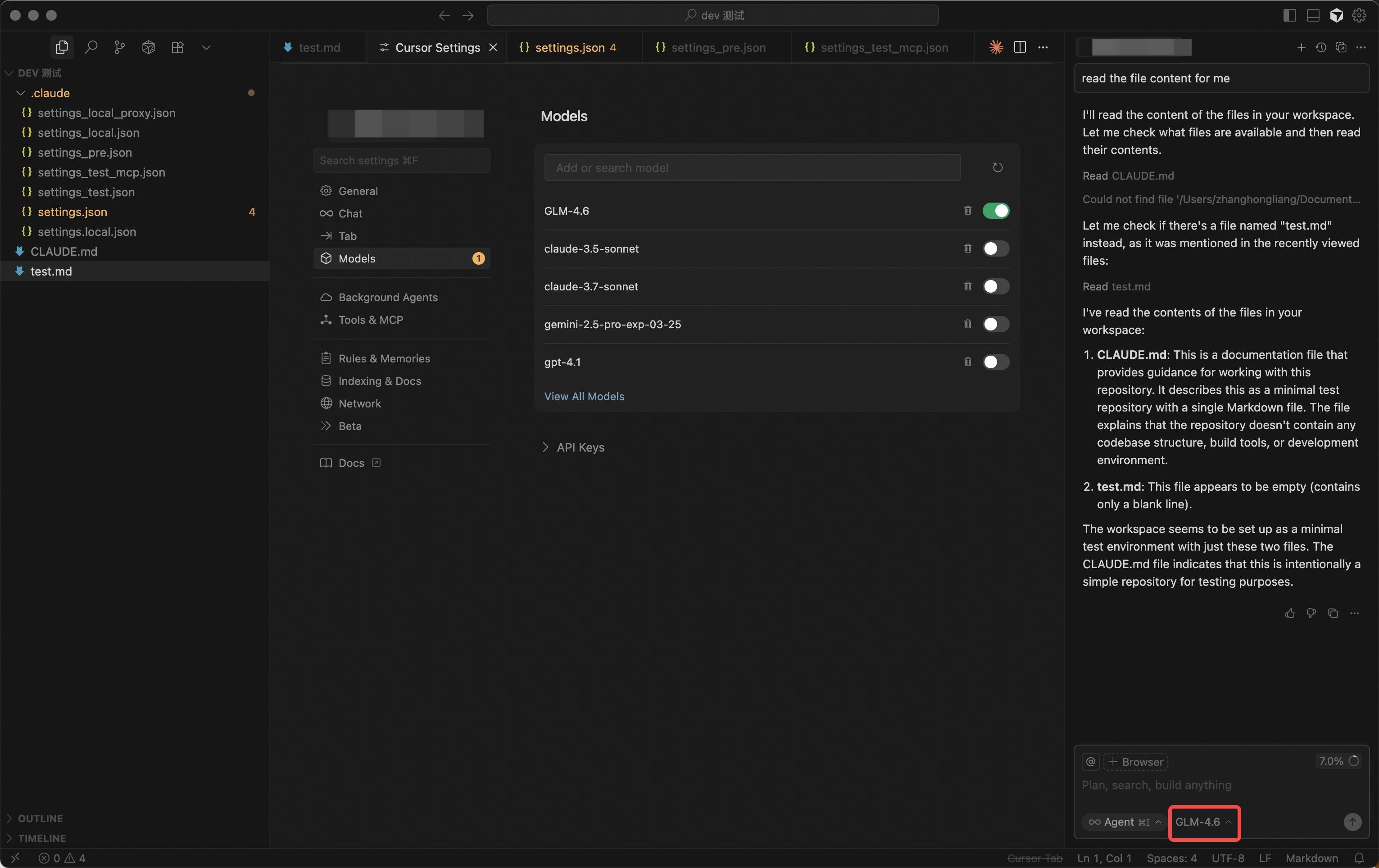
Step 3: Replace API URL
- Locate the API configuration section in your tool: For example, in Goose, this is typically where you set the API address in the configuration file; In VS Code plugins or IntelliJ IDEA plugins, configuration is usually done through the plugin’s settings interface.
-
Replace the OpenAI Base URL: Replace the default OpenAI API URL with
/v1. -
Enter API Key and Select Model:
- Enter your VibeCodeCheap API Key.
- Select
claude-opus-4-5-20251101(standard, complex tasks) orgemini-3-flash(lightweight, faster response) based on your requirements.